Last updated: November 13, 2026 · Category: Tutorial · Editorial review · About the authors
To make someone a mod on Discord, you create a moderator role, give it the right permissions, place it above the members it should moderate, and assign it to that person. A Discord moderator is a member whose role holds moderation permissions. Discord has no separate "make moderator" button, so the role decides everything a mod can and cannot do.
This guide covers the steps, which permissions to give at each level of trust, which to keep back, the permission changes from February 2026, and how to bring a new mod on board.
Key Takeaways
- A moderator is just a role. Its permissions and its position in the role list decide what the moderator can do.
- Give permissions in tiers. A new mod can delete messages and time people out. Kicks, bans, nickname changes, and thread management can come later.
- Since February 23, 2026, pinning needs Pin Messages and skipping slowmode needs Bypass Slowmode. Manage Messages no longer covers either.
How to Make Someone a Mod: The Steps
- Create the role. Open Server Settings > Roles > Create Role and name it, for example "Moderator."
- Pick its permissions. Open the role's Permissions tab and turn on only the permissions in the tier you chose (see the table below).
- Place it in the list. Drag the role above the roles of the members it should moderate, and below your admin roles.
- Assign it. Open the Members page (browser or desktop only), find the person, and add the role. You can also click their avatar in the server and add it from their profile. You need Manage Roles, and unless you own the server, the role must sit below your own highest role.
- Tell them. Share the rules, the moderation channel, and what each action is for.
How to make roles on Discord shows each of these screens, with the sources for every click.
Role position matters as much as permissions. Discord's Roles and Permissions article (retrieved 2026-09-28) says members "cannot ban, kick, or change nicknames of users with equal or higher roles, even if they have those permissions." A mod role placed below the Member role cannot act on regular members, whatever its permissions say. No member can kick or ban the server owner.
Which Permissions to Give a Moderator
Discord's permissions documentation (retrieved 2026-09-28 and 2026-11-02) describes each permission. The tiers below are a recommendation, not a Discord rule:
| Permission | What it allows, per Discord | Trial mod | Moderator | Senior mod |
|---|---|---|---|---|
| Manage Messages | "deletion of other users messages" | Yes | Yes | Yes |
| Time Out Members (Moderate Members in the developer documentation) | Timing out users, so they cannot chat, react, or speak in voice | Yes | Yes | Yes |
| View Audit Log | "viewing of audit logs" | Yes | Yes | Yes |
| Kick Members | "kicking members" | No | Yes | Yes |
| Ban Members | "banning members" | No | Yes | Yes |
| Manage Nicknames | "modification of other users nicknames" | No | Yes | Yes |
| Pin Messages | "pinning and unpinning messages" | No | Yes | Yes |
| Bypass Slowmode | "bypassing slowmode restrictions" | No | Yes | Yes |
| Manage Threads | "deleting and archiving threads, and viewing all private threads" | No | No | Yes |
| Mute Members and Move Members | Muting and moving members in voice channels | If you have voice channels | Yes | Yes |
A trial mod is a new moderator whose tools do not remove anyone from the server. A timeout ends on its own, and a deleted message leaves the author in the server. That gives you time to see how the person handles conflict before they can kick or ban.
Kick vs. ban vs. timeout explains when each action fits, so your moderators use the same scale.
Permissions to Keep Away From Moderators
Some permissions turn a moderator into an admin. Keep them for people you would trust with the whole server:
- Administrator. Discord's documentation says it "Allows all permissions and bypasses channel permission overwrites." A moderator with it can delete channels, edit every role below their own, and kick or ban any member ranked below them, including other staff.
- Manage Server. It "Allows management and editing of the guild," so a moderator with it can change the server's settings.
- Manage Roles. A member with it can create and edit roles below their own and give out permissions they have. A moderator with Manage Roles can promote friends.
- Manage Channels. It lets a moderator delete or rewrite channels. Slowmode changes also need it, so give it to senior mods only if they handle slowmode. How Discord slowmode works covers who can change slowmode.
- Mention Everyone. It allows "using the
@everyonetag to notify all users in a channel." One mistake notifies the whole server.
The February 2026 Permission Splits
Two moderator tools moved to their own permissions in 2026. Pin Messages is the permission that "Allows pinning and unpinning messages," according to Discord's permissions documentation. Discord's developer change log (retrieved 2026-11-02) announced both:
- Pin Messages. "Starting February 23, 2026, users will need the
PIN_MESSAGESpermission to pin messages." The entry adds that "MANAGE_MESSAGESalone will no longer be sufficient." - Bypass Slowmode. From the same date, "users will need the
BYPASS_SLOWMODEpermission to not be affected by slowmode restrictions."
If your mod role does not have Pin Messages and Bypass Slowmode, your moderators have not been able to pin messages or skip slowmode since February 23, 2026. Open the role and add both permissions if they need them.
Two-Factor Authentication for Moderators
A server can require two-factor authentication (2FA) for moderation. Discord's safety guide, Four steps to a safer server (retrieved 2026-11-02), describes a setting that "requires all of your moderators and administrators to have 2FA enabled." Turning it on needs 2FA on your own account first.
Discord's permissions documentation lists which permissions this setting affects for bots. Its footnote says these permissions "require the owner account to use two-factor authentication when used on a guild that has server-wide 2FA enabled." The marked list includes Kick Members, Ban Members, Manage Messages, Manage Channels, Manage Roles, Manage Threads, Manage Server, and Administrator.
Time Out Members is not on that list. The developer documentation does not say whether the same list applies to human moderators, so ask every new mod to turn on 2FA before you give them the role. A moderator account is a target, because whoever takes it over gets its permissions.
Choosing and Onboarding a New Mod
How you pick moderators is up to you. These are suggestions, not Discord rules:
- Ask a few questions first. A short mod application can ask, for example: How long have you been in the server? When are you usually online, and in which time zone? Have you moderated another server, and what did you do there? How would you handle two sample situations from your own server? These are example questions, not a Discord form.
- Start them as a trial mod. Use the trial tier for a few weeks.
- Give them a private staff channel where moderators can discuss decisions before acting.
- Agree on a scale. For example: a warning, then a timeout, then a kick, then a ban. Write it next to your server rules.
- Show them the audit log. How to read the Discord audit log explains what it records, so mods can check each other's actions.
As a made-up example: a gaming server promotes a helpful regular straight to a role with Ban Members and Manage Roles. During an argument, the new mod bans the other person, then creates a new role with Ban Members and gives it to a friend. Starting with the trial tier and keeping Manage Roles for admins would have prevented both.
How to Remove a Moderator
To step a moderator down, open the Members page or their profile and remove the moderator role, the same way you added it. Their moderation permissions go with the role, unless another role they hold grants the same permissions. Then check any bot dashboards they could open, and review their recent actions in the audit log.
Giving Moderators Access to Bot Dashboards
Each bot sets its own rules for who can sign in to its web dashboard, so a moderator role in Discord does not always open it. If your moderators also manage a bot, check its own access settings, and decide whether they need full access or only Discord commands.
AutoMod settings follow Discord permissions instead. How to set up AutoMod covers who can edit its rules. A moderation bot's own settings depend on the bot. What a moderation bot adds covers what to look for.
Dashboard Access in InviteForge
InviteForge's dashboard has its own access rules. The server owner and members with a role that has Administrator can sign in to a server's dashboard. To add a moderator who has neither, open Dashboard → Access & commands → Dashboard access and search their username or paste their user ID. They sign in with their own Discord account and get full dashboard access, without becoming the server's owner. Because that access is full, add only staff you would trust with every setting.
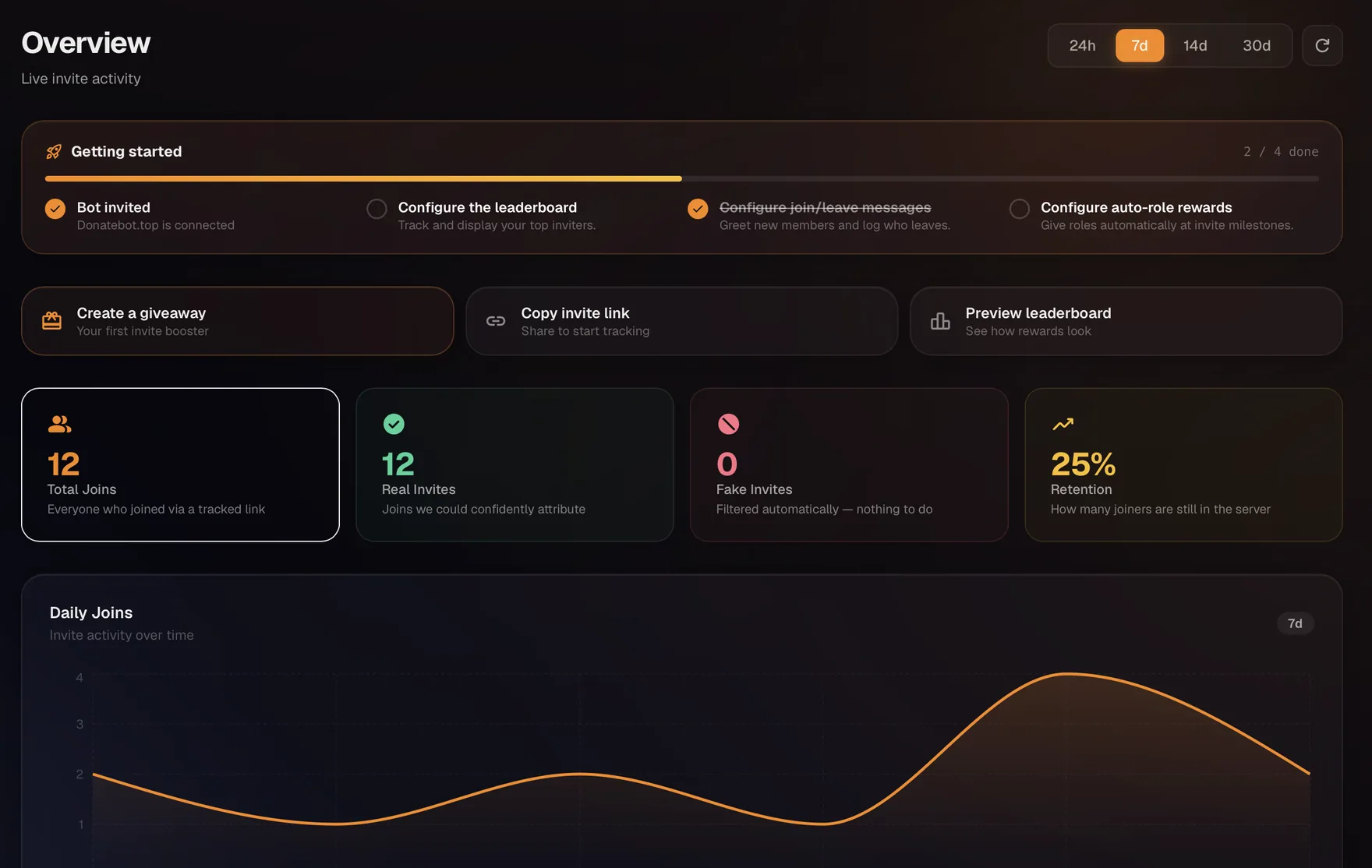
The InviteForge dashboard overview, which a member on the Dashboard access list sees after signing in.
Frequently Asked Questions
How do I make someone a moderator on Discord?
Create a role for moderators in Server Settings > Roles and give it the moderation permissions it needs. Drag it above the roles it should moderate. Then assign it to the member from the Members page or their profile. Discord has no separate moderator setting. A moderator is a member with a role that holds moderation permissions.
What permissions should a Discord moderator have?
As a starting point, not a Discord rule: start with Manage Messages, Time Out Members, and View Audit Log. Add Kick Members, Ban Members, Manage Nicknames, Pin Messages, and Bypass Slowmode once you trust them, and Manage Threads for senior mods. Leave out Administrator, Manage Server, and Manage Roles unless the person is effectively an admin.
Can a moderator ban the server owner or an admin?
Only if the moderator's highest role is above the admin's. Discord's role hierarchy stops members from banning, kicking, or changing the nickname of anyone whose highest role is equal to or above their own, so keep admin roles above the moderator role. No member can ban or kick the server owner.
Why can my moderator not pin messages anymore?
Since February 23, 2026, pinning needs the Pin Messages permission. Discord split it out of Manage Messages, which alone is no longer enough. Add Pin Messages to the moderator role.
Do moderators need two-factor authentication?
Discord's safety guide describes a server setting that requires all moderators and administrators to have 2FA enabled. For bots, Discord's developer documentation marks permissions such as Kick Members, Ban Members, and Manage Messages as needing 2FA when that setting is on, and Time Out Members is not on that list. Ask every moderator to turn on 2FA either way.
Related reading
- About InviteForge (contact the team from that page)