Last updated: November 4, 2026 · Category: Guide · Editorial review · About the authors
A Discord moderation bot, or mod bot, is an app you add to your server to enforce your rules for you. It deletes messages, warns members, times them out, removes them, and keeps a record of each action. Before you add one, it helps to know what Discord already does on its own, because the right bot fills the gaps instead of repeating what AutoMod covers.
This guide shows what Discord handles natively, what a moderation bot adds, which permissions to give it, and how to test one before you trust it.
Key Takeaways
- Discord already blocks keywords, spam, and mass mentions with AutoMod, and moderators can time out, kick, and ban members without any bot.
- A moderation bot earns its place with a case log, warnings that add up, mutes with no time limit, and logs of edited and deleted messages.
- Give the bot only the permissions its features use, place its role above the members it moderates, and test it with a regular account.
What Discord Already Does Without a Bot
Start with the tools you already have. Discord's Auto Moderation documentation (retrieved 2026-11-02) lists the rule types and their limits. A server can have up to 6 keyword rules, plus one rule each for spam, preset word lists, mention spam, and member profiles. A keyword rule holds up to 1,000 words or phrases and up to 10 regular expressions.
When a rule fires, AutoMod can block the message, send an alert to a channel, or time out the member. The timeout action works only on keyword and mention spam rules, and the documentation caps it at "2419200 seconds (4 weeks)." How to set up AutoMod walks through each filter.
| Task | Built into Discord | What a moderation bot adds |
|---|---|---|
| Block bad words and links | AutoMod keyword rules and preset lists, with exempt roles and channels | Other filter types, depending on the bot (check its documentation) |
| Stop mass mentions and spam | AutoMod mention spam and spam rules | Filters for spam repeated across several messages and channels, which Discord's AutoMod FAQ (retrieved 2026-09-28) lists as spam its filter misses |
| Time out a member | Manual timeouts from 60 seconds to 1 week; AutoMod timeouts up to 4 weeks | Mutes with no time limit, using the bot's own muted role |
| Kick or ban | Built in, with the reason in the audit log | A case number stored with each action |
| Record staff actions | Audit log, kept for 45 days | A log channel the bot posts to, kept as long as the channel exists |
| Record edited messages | Not recorded | Message edit logs, in bots that offer them |
| Warnings | No warning action for moderators | Warnings that add up to an automatic punishment |
Discord's audit log documentation (retrieved 2026-11-02) says: "All audit log entries are stored for 45 days." Each entry can also carry the reason the moderator gave. The documentation lists an event for a deleted message, but none for an edited one. How to read the audit log explains what it does record. Manual timeouts range from 60 seconds to 1 week, per Discord's Time Out FAQ (retrieved 2026-09-28), and kick vs. ban vs. timeout explains what each built-in action does.
What a Moderation Bot Adds
A moderation bot is worth adding when your team needs one or more of these:
- A case log. Each warning, timeout, kick, or ban gets a number, a reason, and the name of the moderator. When a member appeals, you can look up the case instead of searching chat history.
- Warnings that add up. Discord gives server moderators timeouts, kicks, and bans, but no warning action. A bot with one can let you set a rule such as "three warnings in a week means a one-day timeout."
- Mutes beyond Discord's limits. Discord timeouts cannot be permanent, so a bot such as Dyno can use its own muted role for a mute with no end date.
- Message logs. A log channel that shows edited and deleted messages helps when someone deletes the evidence after breaking a rule.
- Join and leave logs. A channel that shows who joined and left helps you spot a raid as it starts.
Dyno's documentation describes several of these. Its moderation module logs each action to a modlog channel with the time, the case number, the action, the member, and the moderator. Its mute command takes an optional time limit. The docs note that Discord timeouts cannot be permanent, so a permanent mute needs the "Use Discord Timeouts for Mute" setting turned off, which makes Dyno use its Muted role instead (Dyno docs, retrieved 2026-11-02).
If you are not sure you need any of this, start with AutoMod alone. Add a bot when a gap shows up in practice, such as an appeal you could not check or a deleted message you could not see.
Permissions and Role Position a Moderation Bot Needs
A moderation bot needs real power, so give it only what its features use. Discord's permissions documentation (retrieved 2026-11-02) describes each one:
- Manage Messages: "Allows for deletion of other users messages." Needed for filters and message cleanup.
- Time Out Members (Moderate Members in the developer documentation): allows "timing out users." Needed for timeouts.
- Kick Members and Ban Members: needed only if the bot removes members.
- View Audit Log: needed only if the bot reads the audit log, for example to log who banned whom.
A moderation bot does not need Administrator, which "Allows all permissions and bypasses channel permission overwrites." If a bot's invite link asks for it, look for an invite link with fewer permissions, or ask the developer why it is needed. How to add a bot to a Discord server shows that screen.
Role position matters as much as permissions. The same documentation says: "A bot can only kick, ban, and edit nicknames for users whose highest role is lower than the bot's highest role." Drag the bot's role above every role it should moderate, and below your admin roles. If your server requires 2FA for moderation, the documentation says permissions such as Kick Members, Ban Members, and Manage Messages work for a bot only when its owner account, the developer's account, uses two-factor authentication.
How to Choose a Moderation Bot
Compare moderation bots on the details that change your daily work:
- Case log and appeals. Can you look up a case by number, edit its reason, and see a member's full history?
- Warning rules. Can warnings add up to a timeout or a ban automatically, and do old warnings expire?
- Logs. Does it log edits, deletions, joins, leaves, and role changes, and can you choose a separate channel for each?
- Immunity. Which roles are skipped? MEE6, for example, skips the owner and admins, which is useful, but it also makes testing confusing (see step 3 below).
- Free plan limits. Which features are paid? Check the bot's own pricing page, not a list article, because limits change.
- Dashboard or commands. A web dashboard is easier for a team. Slash commands are faster during an incident.
Check each claim against the bot's own documentation. A list article may describe features that have since moved to a paid plan.
How to Test a New Moderation Bot Safely
Test before you rely on it:
- Add the bot with only the permissions you need, then move its role into place.
- Turn on one feature at a time, starting with logging.
- Test with a regular account that has no staff roles. MEE6's help center gives the same advice: its filters skip "the owner/admin/botmaster" and immune roles, so tests from those accounts show nothing (MEE6 Help Center, retrieved 2026-11-02).
- Try each punishment on the test account, then check the case log and the audit log.
- Write down which tool handles which job, so AutoMod and the bot do not both act on the same message.
As a made-up example: a server sets its AutoMod mention spam rule to time out the sender, then turns on a bot filter that warns members for mass mentions. One spam message now gets an AutoMod timeout and a bot warning, and staff have to check two places to see what happened. Deciding which tool owns each rule avoids that.
Where InviteForge Fits
InviteForge is not a full moderation bot. It has no warn, mute, or ban commands, no case log, and no message logs. Its tools work mainly on the step before moderation: deciding who gets in and which joins are real.
- Verification gate. New members verify on a web page before they get access. How Discord verification bots work covers the setup.
- Fake-invite filtering. Anti-Fake marks joins from accounts younger than the age you set as fake. It is off by default.
- Alt-account checks. On PRO, groups of accounts created around the same time that join through one invite are flagged. How alt-account detection works explains the limits.
- Honeypot channel. A trap channel no real member should post in. When an account posts there, InviteForge applies the sanction you choose (softban or ban on every plan; kick, timeout, or a role on PRO) and deletes that account's messages from the last 10 minutes across the server.
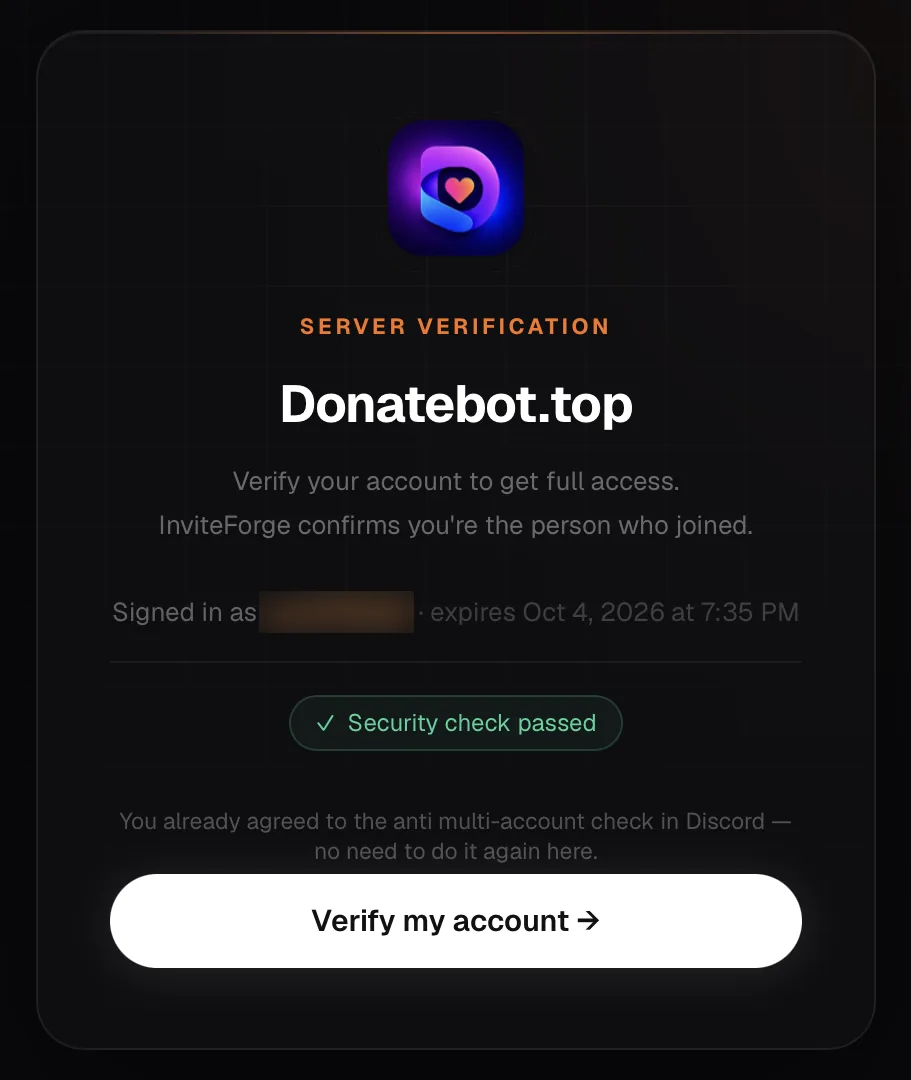
The InviteForge verification page a new member sees before getting access.
Use it next to AutoMod or a moderation bot. During a raid, the moderation tools handle messages, the verification gate holds new accounts until they verify, and the honeypot catches accounts that post in every channel. What to do during a Discord raid covers the moderation and verification steps.
Frequently Asked Questions
Do I need a moderation bot if I use AutoMod?
Not always. AutoMod blocks keywords, spam, and mass mentions, and an AutoMod rule can time out a member for up to 4 weeks. A bot is worth adding when you need what AutoMod does not give you: a case log with case numbers, warnings that add up, mutes with no time limit, or a log of edited and deleted messages.
What permissions does a moderation bot need?
Only the ones for the jobs you turn on: Manage Messages to delete messages, Time Out Members to time people out, Kick Members and Ban Members for removals, and View Audit Log if it reads the log. It does not need Administrator. Its role must also sit above the roles of the members it moderates.
Why is my moderation bot not punishing anyone?
Check two things first: role position and the account you test with. A bot can only act on members whose highest role is below its own highest role. Bots such as MEE6 also skip the owner, admins, and immune roles, so test with a regular account.
Can a moderation bot log edited messages?
Yes, if it has a message log feature. Discord's audit log does not record message edits, and it keeps entries for 45 days. A logging bot keeps its own copy in a channel you choose, for as long as that channel exists.
Is InviteForge a moderation bot?
Not a full one. InviteForge has no warn, mute, or ban commands, no case log, and no message logs. Its one moderation feature is a honeypot channel that sanctions accounts that post in it. Otherwise it covers the steps before moderation: a verification gate for new members, fake-invite filtering, and alt-account checks. Use it next to AutoMod or a moderation bot, not instead of one.
Related reading
- About InviteForge (contact the team from that page)