Last updated: November 20, 2026 · Category: Guide · Editorial review · About the authors
Discord server stats are the numbers that describe a server: how many members it has, how many are online, how many join and leave, how much they talk, and where they come from. Discord shows some of these natively. The rest come from bots, which fall into three kinds: counters, activity dashboards, and growth analytics.
This guide covers what Discord shows without a bot, what each kind of stats bot adds, and which numbers are worth watching.
Key Takeaways
- Discord shows member and online counts on every server, and join details on the Members page. Server Insights adds trends, but only on Community servers with more than 500 members.
- "Stats bot" covers three different tools: counter channels that display a number, activity dashboards that measure chat, and growth analytics that track joins, leaves, and invites.
- Watch net growth and how many new members stay, not the member count alone.
Three Kinds of Server Stats
Before choosing a tool, decide which question you are asking. Each kind of stats answers a different one.
| Kind | Question it answers | Typical form | Example numbers |
|---|---|---|---|
| Display counters | "How big is the server right now?" | Renamed channels, often voice channels | Members, online, boosts |
| Activity stats | "How active is the community?" | Commands, images, web dashboards | Messages per day, busiest channels, active members |
| Growth and join stats | "Where do members come from, and do they stay?" | Dashboards, reports | Joins, leaves, net growth, invites, retention |
Counters are for showing off. Activity stats are for running the community. Growth stats are for deciding where to spend effort, such as which advertising channel brings members who stay.
What Discord Shows Without a Bot
Discord gives every server a few numbers for free, and larger Community servers a few more.
- Member and online counts. Every server shows how many members it has and how many are online. Discord's guild resource documentation (retrieved 2026-11-01) says its API returns
approximate_member_count, the "approximate number of members in this guild", andapproximate_presence_count, the "approximate number of non-offline members", when a server is requested withwith_counts=true. As the field names say, they are approximate. - The Members page. Discord's Members Page article (retrieved 2026-09-28) says it shows "when they joined the server" and "how they joined the server", with invite codes visible to members with Manage Server. It works on browser and desktop only, and it is a list, not a chart.
- Server Insights. Discord's Server Insights FAQ (retrieved 2026-09-03) limits it to Community servers with more than 500 members, for people with Administrator or the View Server Insights permission. It shows trends for the whole server. Server Insights vs. an invite tracker compares what it covers in detail.
- The audit log. It records moderation and settings actions, not activity. What the audit log records explains what you can and cannot find there.
A small or non-Community server therefore has counts and lists, but no trends. That gap is what stats bots fill.
Stats Bots: Counters and Activity Dashboards
A stats bot is a bot that collects numbers about your server and displays them. Google's AI Overview for "discord server stats" (US, retrieved 2026-11-01) names ServerStats and Statbot as examples. The two features below are common in this space; they do not describe any specific bot. Growth analytics, the third kind, has its own section.
Counter channels show a number in a channel name, such as "Members: 1,234". The bot renames a channel, often a voice channel members cannot join, and updates the name from time to time. Counters are easy to read, but the number can lag behind the real count, and they say nothing about why it changed.
Activity dashboards count messages, active members, busy channels, and busy hours. They answer whether the community is alive, not only whether it is big. Because they count messages, check what data the bot stores and whether it keeps message content or only counts.
Join and Growth Stats
The third kind tracks movement: who joined, who left, how they found the server, and whether they stayed. These are the numbers that tell you whether growth is real.
A net growth figure is joins minus leaves over a period. It matters more than the member count, because, for example, a server could gain 500 members in a week and lose 450 of them. Retention, the share of new members still there after a week or two, shows whether those joins were worth anything. Fake joins distort both, which is why reading your real vs. fake join ratio is worth a look before celebrating a spike.
Invite and source stats show where joins came from: a specific invite link, the vanity URL, Server Discovery, or join requests. They are what let you compare channels, partners, or recruiters.
Server Stats in InviteForge
InviteForge covers growth and join stats, plus chat activity on PRO. It does not offer counter channels for your server.
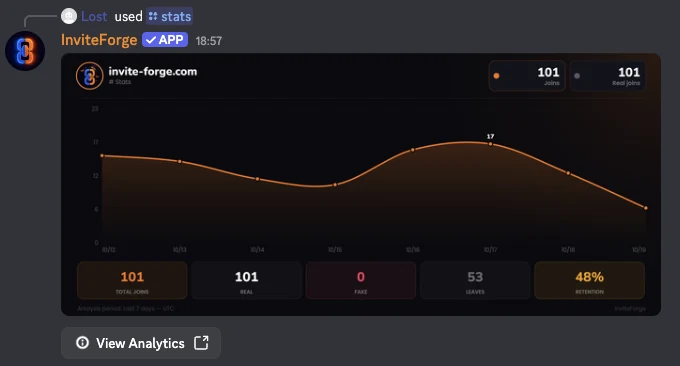
/stats. Shows joins, real and fake joins, leaves, and retention for the last 24 hours or 7 days on every plan. The 30-day period is PRO only. The chart image shown above is on Supporter and PRO; Free servers get a text reply.- Dashboard Overview. Net growth compared with the previous period, the invite funnel (joined, real after fake filtering, verified when verification is on, still here), quick leaves, top recruiters, where members come from (invite links, vanity URL, join requests, Server Discovery, bots and apps), and the top invite links with how many of their members stayed. The invite analytics page shows the join charts and the per-link breakdown. History goes back 7 days on Free, 14 days on Supporter, and 30 days on PRO.
- Chat activity (PRO). Messages, top chatters, busiest channels and hours, reactions, and how many new members send a first message. Recording starts when the server is on PRO, and only counts are kept, never message content.
- Campaigns. The same numbers between two moments you choose, with a saved report. The Campaigns documentation lists the campaign limits per plan.
Which Numbers to Watch
Pick numbers that match the decision you need to make.
- Net growth over a week or a month. It shows the direction once joins and leaves are both counted.
- Retention of new members. Of the people who joined last week, how many are still here? A low figure points to the first-screen experience, or to low-quality sources.
- Members who talk. A large server where few people post is quieter than its member count suggests.
- Joins by source. Which links, partners, or recruiters bring members who stay. What to track on an invite leaderboard covers the recruiter side.
Look at these over the same period each time, and compare a period with its predecessor rather than reading a single day.
As a made-up example: a server ends the month with 200 more members than it started with. It looks healthy. But if 900 people joined and 700 left, and only a handful of the newcomers ever posted, the real story is a busy door and an empty room. Retention and members who talk show that; the member count does not.
Frequently Asked Questions
How do I see stats for my Discord server?
Discord shows the member and online counts on every server, and the Members page shows when and how each member joined. Community servers with more than 500 members also get Server Insights. For trends on a server that does not qualify for Server Insights, or for joins and retention per invite link over time, you need a stats bot.
What is a Discord stats bot?
It is a bot that collects numbers about your server and shows them as counter channels, images, commands, or a web dashboard. Some focus on display counters, some on chat activity, and some on joins, leaves, and invites.
Can I see Discord server stats without Server Insights?
Yes, partly. Every server shows its member and online counts, and the Members page shows join dates and join methods. Trends over time, activity by channel, or retention need a bot.
How do member counter channels work?
A stats bot renames a channel, often a voice channel members cannot join, to show a number such as the member count. The bot updates the name from time to time, so the number can lag behind the real count.
Which server stats matter most?
It depends on the goal. For growth, look at net growth and how many new members are still there after a week. For community health, look at how many members actually talk. A rising member count alone says little.
Related reading
- About InviteForge (contact the team from that page)